Kali Linux 2026.2: Set Up a Safe Practice Lab the Right Way

Part 1: Set Up a Safe Practice Lab (you are here)
Part 2: Nmap Recon on Your Own Lab
All parts in this series
Kali Linux is where most people start when they want to learn ethical hacking, and I get asked about it a lot. So I’m starting a series on getting real value out of it. In this first part I’ll walk through what the current release changed, which image to pick, and how to build a small, isolated practice lab where you can make mistakes without hurting anyone.
First, the legal bit
Disclaimer: This post is for education and authorized security testing only. Accessing or scanning a computer, network or account without permission is illegal, including under India’s Information Technology Act, 2000 and similar laws in other countries. Only test systems you own, or systems where you have clear written permission from the owner before you start.
I’ll repeat a version of this in every part. Everything in this series stays inside your own lab or a legal practice platform.
What Kali 2026.2 changed for beginners
As I write this on 21 October 2026, the newest release listed on the official Kali blog (checked 21 Oct 2026) is Kali Linux 2026.2, published on 29 June 2026. If a newer release appears after this post goes up, the setup ideas below still apply. Just check the blog first.
The 2026.2 release has a lot in it. These are the parts I think matter most when you are starting out.
A new home for package sources
For years, Kali told APT where to download updates through the file /etc/apt/sources.list. In 2026.2 that file is retired. The release post (29 Jun 2026) says the new location is /etc/apt/sources.list.d/kali.sources. Many older tutorials still tell you to edit the old file, so keep this in mind when you follow a guide from a few years back.
Lighter images for virtual machines
Kali used to ship a lot of graphics firmware in its images. The team explains that firmware for NVIDIA, AMD and Intel GPUs takes almost 300 MB, and that the early boot image (the initrd) had grown to around 200 MB, mostly because of it. In 2026.2 they stopped pre-installing that graphics firmware for VM use cases, and according to the release post the initrd is now down to 60 MB for VM users, with boot time cut by about three times in their QEMU test. Bare metal installs still get the full 200 MB initrd. That is good news for anyone learning in a VM, which is what I recommend below.
Reboot after the upgrade
One small thing can trip you up. The same release notes (29 Jun 2026) say the updated polkit package needs a reboot, or GUI apps run as root can fail with confusing errors. The xrdp upgrade also calls for one. So after a big upgrade, reboot before you panic.
Kernel and new tools
Kali 2026.2 ships with Linux kernel 6.19. The team says they held back the 7.0 kernel because of reports that it clashed with NVIDIA’s DKMS drivers, and that 7.0 is waiting in kali-experimental for people who want it. The same post adds that 7.0 is also available in kali-rolling, so a full upgrade gets you the newer kernel (Kali, 29 Jun 2026). According to the release post, it also added nine new tools to the repositories. Two that fit a defensive mindset are oletools, for analysing Microsoft Office documents, and arsenal-ng, a Go based command library with more than 200 cybersecurity cheat sheets. Desktops moved to GNOME 50 and KDE Plasma 6.6.

Pick the right Kali image for you
Kali comes in several forms. The download page lists installer images, virtual machine images, cloud, ARM, mobile (NetHunter) and containers. For learning, I’d narrow it down to three choices.
Virtual machine image (my pick for beginners)
A prebuilt VM image for VirtualBox or VMware is the easiest start. You can take snapshots, roll back after a mistake and keep Kali fully separate from your daily computer. With the lighter 2026.2 images, boot is quicker too.
Installed on spare hardware
If you have an old laptop gathering dust, a full install gives you real hardware access, which matters later for things like Wi Fi testing on your own network. The trade off is that you lose easy snapshots.
WSL on Windows
Kali is also available through the Microsoft Store for WSL. It’s handy for running command line tools, but networking in WSL behaves differently from a normal VM, so it is less suited to a closed lab.
Whichever you choose, download only from kali.org and check the SHA256 checksum listed for the image before you use it.
Build an isolated practice lab
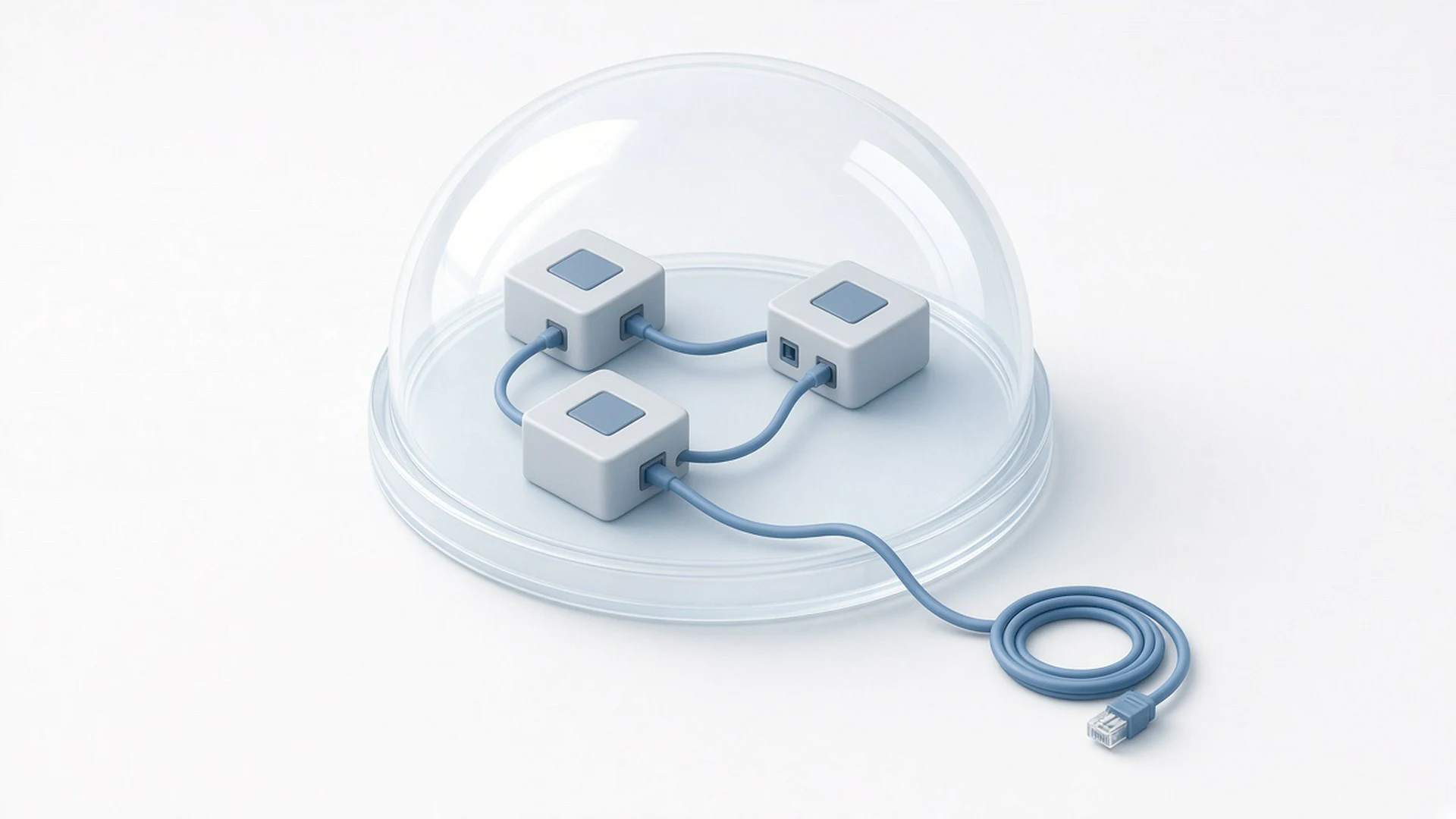
A lab is just two or more machines that can talk to each other and nobody else. Here is a generic layout that works on most laptops with 16 GB of RAM.
The three pieces
- Your attacker machine: the Kali VM.
- One or more targets: intentionally vulnerable machines built for practice. OWASP Juice Shop is a deliberately insecure web app; its latest release on GitHub is v20.3.0, published in October 2026 (checked via the GitHub API, 21 Oct 2026). It is MIT licensed and actively maintained. Classic options such as Metasploitable and DVWA are also built for exactly this purpose.
- A private network: a “host only” or “internal” network in your hypervisor, so the VMs see each other but not your home network or the internet.
Keep the lab off the internet
This is the step people skip. A vulnerable VM is vulnerable on purpose. If you connect it to a bridged network, other devices on your Wi Fi can reach it, and that is a risk you created. Put the targets on the host only network. Give Kali a second adapter with NAT only when you need to download updates, then switch it off again.
Safe first commands
Once both VMs are on the same host only network, these commands are all you need on day one. They only look at your own machine and your own lab subnet.
bash
sudo apt update && sudo apt full-upgrade -y
sudo reboot
ip -br addr
cat /etc/apt/sources.list.d/kali.sources
The first two bring Kali up to date and handle that reboot. ip -br addr shows your lab IP address, so you know which subnet is yours. The last one lets you see the new sources file for yourself. We’ll do real recon on the lab in Part 2.
When you want a bigger playground
Online platforms such as TryHackMe and Hack The Box give you legal targets inside their own networks, over a VPN connection. Their machines exist to be attacked, and their rules spell out what is in scope. Read those rules before you start each room or machine.
Your first week of safe habits
Habits matter more than tools. My day job sits close to network detection and response, so I see how much noise one careless scan makes on a real network. These are the habits I’d build from the start.
Write down your scope
Before every session, write one line: which IP addresses you are allowed to touch today. In your own lab that is your host only subnet. On a platform it is the machine you were assigned. If an address is not on the list, leave it alone.
Snapshot before you experiment
Take a VM snapshot of both Kali and your target before trying something new. If you break something, you roll back in seconds instead of rebuilding.
Keep notes from day one
One plain text file for each session is enough. Note the date, the target, the commands you ran and what you saw. In professional testing, notes become the report, and the report is what the client pays for.
Update, then reboot
Kali is a rolling distribution, so updates arrive often. Update at the start of a session, and reboot after big upgrades, as the 2026.2 notes advise.
For a full monthly routine, see keeping Kali healthy and updated.
How do you build this lab step by step?
Here is the hands on version of everything above. Follow it in order. Every step stays on your own computer, and nothing in the lab can reach your home network or the internet once you finish. At the end you’ll have an updated Kali VM and a Juice Shop target on a host only network, both snapshotted.
Reminder: This section is for education and authorized testing only. Unauthorized access is illegal, including under India’s Information Technology Act, 2000. Use only machines you own or have written permission to test.
What you need before you start
- A computer with at least 16 GB of RAM and about 80 GB of free disk space.
- Virtualization switched on in your BIOS or UEFI (often called Intel VT x or AMD V).
- VirtualBox installed on Windows or Linux. The commands below use its
VBoxManagetool. On macOS, or with VMware, use the equivalent menu options. - About two hours for the first run.
Step 1: Download the Kali VM image and check it
- Open the Get Kali page and choose Virtual Machines, then the VirtualBox download for your CPU. The current release is Kali 2026.2 (29 Jun 2026).
- Copy the SHA256 checksum shown next to the download.
- In a terminal on your computer, in the folder where the file landed, run:
sha256sum kali-linux-2026.2-virtualbox-amd64.7z
Expected output: one long string of letters and numbers, followed by the file name. It must match the checksum from the website character for character. If it doesn’t, delete the file and download again. (Your file name may differ slightly. Use the one you downloaded.)
- Extract the archive with 7 Zip or your file manager, then double click the
.vboxfile to import it into VirtualBox.
Step 2: Create a private host only network
A host only network lets your VMs talk to each other and to your computer, but not to the internet. On a Windows or Linux host, run these on your computer (not inside Kali):
VBoxManage hostonlyif create
VBoxManage hostonlyif ipconfig vboxnet0 --ip 192.168.56.1 --netmask 255.255.255.0
VBoxManage dhcpserver add --ifname vboxnet0 --ip 192.168.56.100 --netmask 255.255.255.0 --lowerip 192.168.56.101 --upperip 192.168.56.200 --enable
Expected output: the first command prints a line saying the interface vboxnet0 was successfully created. The other two print nothing when they work. On Windows the adapter may get a longer name, so use the name the first command prints. If the DHCP command says a server already exists, that’s fine, it means one was set up earlier.
Step 3: Put Kali on the private network
With the Kali VM switched off, run (replace kali-linux-2026.2 with the VM name shown in VirtualBox):
VBoxManage modifyvm "kali-linux-2026.2" --nic1 nat --nic2 hostonly --hostonlyadapter2 vboxnet0
Adapter 1 (NAT) gives Kali internet access for updates. Adapter 2 joins the private lab. Later, when you practise, you can switch adapter 1 off.
Step 4: Start Kali, update it and reboot
Start the VM and log in (the prebuilt image uses kali as both username and password; change it straight away with passwd). Then open a terminal in Kali:
passwd
sudo apt update && sudo apt full-upgrade -y
sudo reboot
Expected output: apt lists packages, downloads and installs them, and ends back at the prompt with no red error lines. The 2026.2 release notes warn that the polkit update needs a reboot, which is why the reboot is part of the step.
Step 5: Find your lab address
After the reboot, run:
ip -br addr
Expected output (sample, your names and numbers may differ):
lo               UNKNOWN        127.0.0.1/8 ::1/128
eth0             UP             10.0.2.15/24
eth1             UP             192.168.56.102/24
eth0 is the NAT adapter. eth1 is your private lab address in the 192.168.56.x range. Write that address in your notes.
Step 6: Build a practice target VM
Your target should be a second VM, so attacks never land on your own Kali machine. Two common choices:
- OWASP Juice Shop in Docker on a small Linux VM, such as a second Kali or a Debian VM. This is the target we use in Parts 2 and 3.
- Metasploitable 2, a deliberately vulnerable VM image built for practice. Import it, then attach it only to
vboxnet0and never to a bridged or NAT network.
For the Juice Shop option, give the second VM the same two adapters as Kali in Step 3, then inside it run the Docker install from Kali’s Docker docs (checked 21 Oct 2026):
sudo apt update
sudo apt install -y docker.io
sudo systemctl enable docker --now
sudo docker pull bkimminich/juice-shop
Expected output: the last command downloads several layers and ends with a line saying the image was downloaded or is up to date. The current Juice Shop release is v20.3.0 (11 Oct 2026, checked via the GitHub API on 21 Oct 2026).
Now switch the target’s NAT adapter off so it lives only on the lab network. With the target VM off, run this on your computer (use your target VM’s name):
VBoxManage modifyvm "lab-target" --nic1 none
Start the target again, find its lab address with ip -br addr (for example 192.168.56.101), and start Juice Shop bound to that address only:
sudo docker run --rm -p 192.168.56.101:3000:3000 bkimminich/juice-shop
Expected output: a series of startup log lines, ending with a message that the server is listening on port 3000. Leave this terminal open.
Step 7: Check that Kali can see the target
Back in Kali, run:
curl -sI http://192.168.56.101:3000 | head -1
Expected output:
HTTP/1.1 200 OK
If you get “connection refused” or nothing at all, check that both VMs use vboxnet0 and that the Juice Shop terminal is still running.
Step 8: Take snapshots
Shut both VMs down cleanly, then on your computer:
VBoxManage snapshot "kali-linux-2026.2" take "clean-start"
VBoxManage snapshot "lab-target" take "clean-start"
Expected output: a progress bar reaching 100 percent for each. Now you can always roll back with VBoxManage snapshot "<vm name>" restore "clean-start" while the VM is off.
Step 9: Start your notes and scope file
In Kali:
mkdir -p ~/lab-notes
echo "192.168.56.101" > ~/lab-notes/scope.txt
echo "$(date '+%F %R') lab built: kali eth1 192.168.56.102, target 192.168.56.101 (Juice Shop :3000)" >> ~/lab-notes/log.txt
cat ~/lab-notes/log.txt
Expected output: your log line printed back with today’s date and time. Use your own addresses from Steps 5 and 6.
Quick checklist before you move on
- Kali updated, rebooted and snapshotted.
- Target reachable from Kali on port 3000, with no NAT adapter on the target.
scope.txtcontains only your target’s address.- No VM is attached to a bridged adapter.
Once this lab works, you can also connect an AI agent to it safely with my hands on MCP setup for Kali.
When all four are true, you’re ready for Part 2, Nmap recon on your own lab.
What to do next
Here is a short checklist to finish this week:
- Download the Kali 2026.2 VM image from kali.org and check its checksum.
- Create a host only network in your hypervisor.
- Set up one practice target, such as OWASP Juice Shop, on that network.
- Run the four safe commands above and confirm both VMs can see each other.
- Take snapshots of both machines.
- Make a free account on TryHackMe or Hack The Box and read their rules of engagement.
- Start a notes file with today’s date and your lab scope.
In Part 2, we’ll use Nmap to map that lab properly and learn to read the results without guessing. It’s ready now: Recon on Your Own Lab With Nmap.
Once your isolated lab is running, the next good step is web app testing, and my guide to testing OWASP Juice Shop safely on Kali shows you how to keep it all on localhost.
Once your lab feels familiar, you can even let a local AI agent help, carefully, with approval on every command. I show how in Fully Local AI for Kali.



Leave a comment